Getting a Mobile Driver’s License on Your Phone in California
A phone-based driver’s license can make identity checks more convenient, but it is easy to assume it works everywhere a plastic card does. California’s mobile driver’s license has specific setup requirements and acceptance limits. Here’s how to get one, what it can help with, and why you should keep carrying your physical license.
What a California mobile driver’s license is
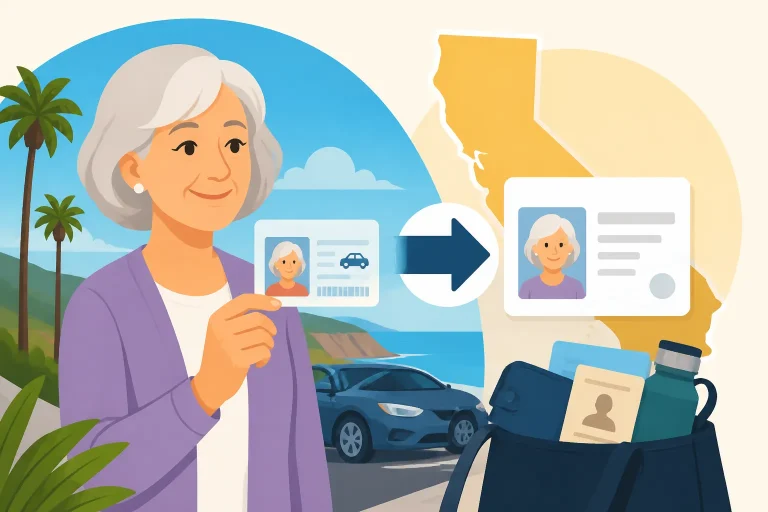
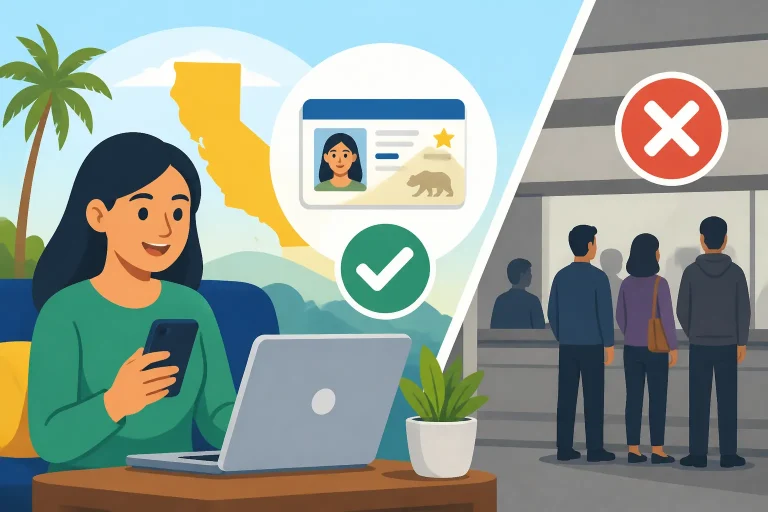
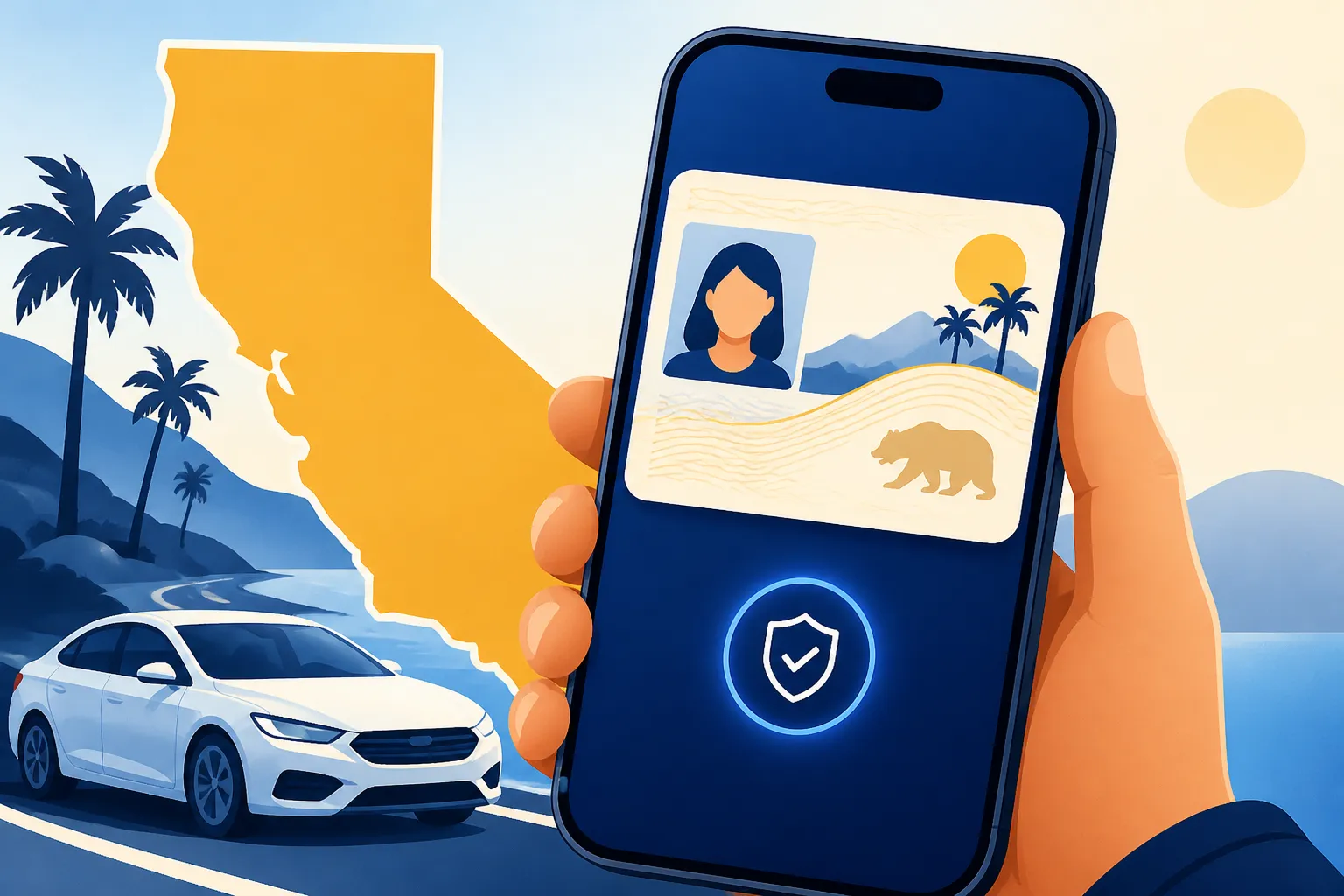
A California mobile driver’s license, often shortened to mDL, is a digital version of your state-issued license or identification credential. You access it through an app or a supported phone wallet, depending on the options currently offered by the California Department of Motor Vehicles (DMV). It lets you present certain identity details from your phone instead of handing over your physical card.
It is not simply a photo of your license saved in your camera roll. A supported digital credential is designed to let you share information through a controlled process, such as displaying a secure screen or responding to a reader’s request. A screenshot or photograph of a plastic card does not provide the same protections and generally will not count as a mobile driver’s license.
The mDL is linked to your existing California license or ID. It does not create a new driver’s license, change your driving privileges, or extend your card’s expiration date. If your physical license expires, is suspended, or otherwise changes status, the digital version should not be treated as a way around that change.
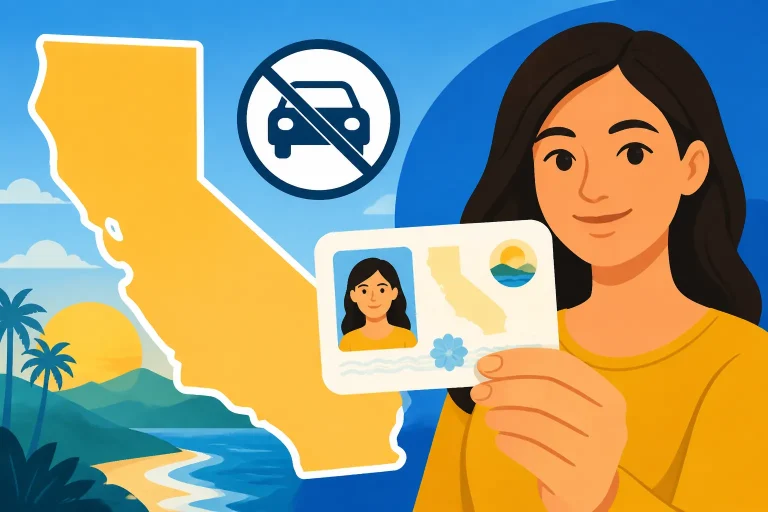
The physical card remains important. California’s mobile license is intended to be an additional way to present identification, not a universal replacement for the card. Keep your physical license with you when driving, and carry it for situations where a business, agency, airport checkpoint, or official does not accept the digital version.
If you are still sorting out your underlying license, start with California Driver’s License Basics: Apply, Renew, Replace. A mobile credential does not replace the regular application or renewal process.
| Question | Practical answer |
|---|---|
| Is an mDL the same as a photo of my license? | No. It is issued through a supported digital process; a photo or screenshot is not equivalent. |
| Does it replace my physical card? | No. Keep the card, especially when driving or traveling. |
| Does it change whether my license is valid? | No. It reflects your existing credential and does not change its status or expiration. |
| Will every business accept it? | No. Acceptance depends on the organization, the location, and its technology. |
| Is it the same thing as REAL ID? | No. A mobile license and the REAL ID designation are separate issues. |
How to get and set up an mDL
California’s available enrollment methods and supported phone-wallet options can change. Check the California DMV’s official information before you begin, and follow the enrollment instructions in the DMV-supported app or wallet. Be cautious about apps that use similar names but are not provided or identified by the DMV.
The exact screens can differ by device and by the enrollment option available to you. In general, expect to verify that you hold a California credential, confirm information from your card, and complete identity checks through your phone. The app will explain which information it needs and how to complete each step.
Before you start
Get ready with:
- Your current California driver’s license or ID card.
- A compatible smartphone with access to the supported app or wallet.
- A working camera and, if requested, permission to use it.
- A reliable internet connection for enrollment and any required updates.
- Access to the phone’s security features, such as a passcode or biometric lock.
Use the DMV’s official instructions to confirm eligibility. Do not assume that an expired, cancelled, suspended, or otherwise ineligible credential can be added just because you still have the physical card. If you are unsure about the status of your license, use the DMV’s status service or see Checking Your California License or ID Card Status Online.
A typical setup process
- Find the official enrollment instructions. Start from the California DMV’s information about its mobile driver’s license, then use the app or phone-wallet option it identifies. Availability may differ by device or change over time.
- Install or open the supported app. Check the publisher and app details carefully. Avoid entering license information into an app you cannot verify as an official or supported option.
- Follow the identity-verification prompts. You may be asked to scan your card, enter details, or use the camera to verify that you are the person shown on the credential. The app’s instructions determine what is required.
- Review the information before completing enrollment. Make sure the details match your current card. If something is wrong, do not assume the digital version will correct the underlying record.
- Set up phone security. Use a strong passcode and keep your operating system and supported app updated. These steps help protect the phone that now holds access to a sensitive identity credential.
- Learn how to present the credential. Before you rely on it, review the app’s instructions for showing or sharing information. A reader may need to scan a code, or you may need to approve a request on the phone.
If the enrollment process fails, check that your card information is being entered accurately and that your phone meets the app’s requirements. Repeatedly retrying with an unverified app is not a good workaround. Use the DMV’s official troubleshooting guidance, and contact the DMV through its official channels if the problem appears to involve your license record rather than your phone.
If you are replacing or renewing your card
An mDL is tied to the credential the DMV has issued. If you are replacing a lost or damaged card, make sure the replacement request is complete and your record is correct before relying on a digital version. The steps for a replacement are covered in Replacing a Lost or Damaged California Driver’s License.
Renewal is a separate process, too. Adding a credential to a phone does not renew it, and a successful renewal does not mean every digital wallet will update immediately. Check the card and digital credential instructions after a renewal or replacement, and keep your old physical card only as allowed by the DMV’s instructions. For renewal options, see California Driver’s License Renewal Guide for Every Situation.
Where a California mDL may work
An mDL can be useful when an organization has chosen to accept California’s digital credential and has a compatible way to verify it. Depending on the current program and the organization, that may include some identity checks or age-verification situations. Acceptance is not automatic just because a business has a smartphone or a scanner.
Airport security is another situation where people may expect a phone credential to work. The Transportation Security Administration has supported mobile driver’s licenses at participating checkpoints, but acceptance depends on the airport and checkpoint. Do not assume every checkpoint accepts California’s mDL, and do not plan a trip around the phone credential alone. Bring the physical identification you would otherwise use.
Before presenting your phone, look for clear instructions at the location or ask staff whether they accept California’s mobile driver’s license. If they do not, you may need another form of identification. A business can also have policies that are more restrictive than the technology itself.
For a federal flight identification question, it helps to distinguish a digital credential from a physical REAL ID card. Having an mDL on your phone does not automatically mean that your physical card is a REAL ID, nor does it guarantee acceptance for every federal purpose. The separate rules for the physical card are explained in REAL ID in California: Who Needs One and How to Get It and REAL ID or Standard Card: Which Should You Pick in California?.
Situations where you should still carry the physical card
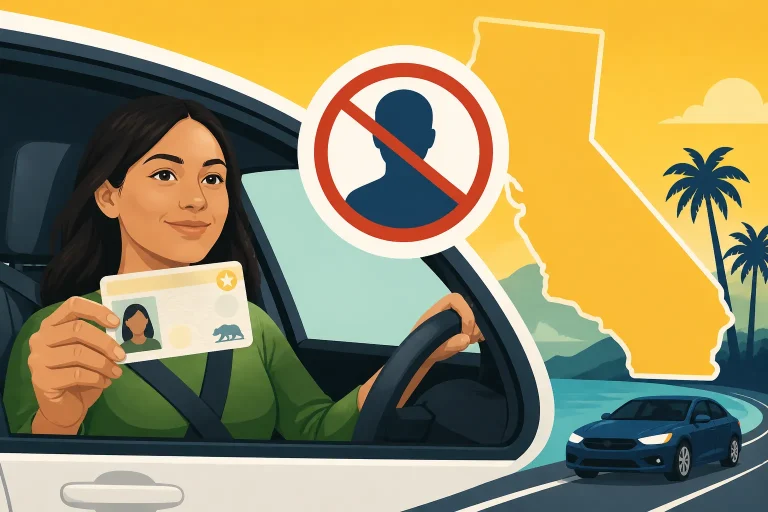
Keep your physical license with you when driving. Do not treat an mDL as permission to leave your plastic license at home. A traffic stop or another interaction with law enforcement may not provide a way to use the digital credential, and the safest approach is to be prepared to show the physical card.
Carry the card as well when you:
- Travel through an airport, especially if you have not confirmed that the checkpoint accepts the mDL.
- Visit a business or office that has not confirmed it accepts California’s digital credential.
- Expect to use your license for an age check, account setup, or transaction where the organization may require a physical card.
- May need to prove your identity without access to your phone.
- Are using a phone that is low on battery, damaged, or unable to open the supported app.
If you need a card that is accepted for a particular purpose, check the relevant organization’s requirements rather than assuming a digital version will satisfy them. A mobile license is best treated as a convenient backup or an additional presentation method, not as a substitute for planning.
Privacy, security, and common problems
A major practical difference between an mDL and handing over a card is how information may be shared. With a physical license, the person checking it can see the information printed on the card. A supported digital presentation may let you review a request and approve the details being shared. The exact information and process depend on the app, the reader, and the verification setting.
That added control can be useful, but it does not make the credential risk-free. Your phone is still a device that can be lost, stolen, damaged, or accessed by someone who knows its unlock code. Protect the phone itself, and do not approve a request unless you understand what information it is asking to receive and who is requesting it.
Use these habits to reduce avoidable problems:
- Keep a secure screen lock enabled. A phone without a lock is easier for someone else to access.
- Do not show a screenshot of your mDL as a substitute for the supported presentation process.
- Read the request before approving it. If the requested information seems unrelated to the transaction, pause and ask why it is needed.
- Avoid handing an unlocked phone to someone you do not trust. Follow the app’s presentation instructions instead.
- Keep your phone and its software updated, and use only the supported app or wallet options.
- If your phone is lost or stolen, follow the app provider’s and phone maker’s security steps, and consider whether the DMV needs to be contacted.
- Keep the physical card available so a dead battery or device problem does not leave you without identification.
If the phone is lost, broken, or out of power
A mobile license cannot help if you cannot unlock the device, open the app, or complete the presentation. A cracked screen, an empty battery, a lost phone, or a software issue can all turn a convenient option into an unusable one. Keep the physical card in a secure place where you can access it when needed.
If you lose the phone, secure it using the phone manufacturer’s lost-device tools and follow the supported app’s instructions for removing or protecting the credential. If you replace the phone, do not assume the mDL will transfer automatically. Use the official enrollment or recovery process for the new device.
If the physical license itself is missing, request a replacement through the California DMV’s official process. A mobile credential is not a reason to delay replacing a card you need for driving or other situations that require physical identification.
If the information does not match
An mDL does not fix an error in the DMV’s record. If your name, address, or other details are incorrect, resolve the record issue through the DMV before expecting the digital credential to show something different. For a name correction, see Fixing a Misspelled Name on Your California License. For an address update, use Changing Your Address With the California DMV: Online or by Mail?.
A mismatch can also result from an old card, a recent renewal, or an incomplete update. Compare the digital information with your current physical credential and check the DMV’s instructions. If the problem concerns the underlying license record, contact the DMV rather than repeatedly deleting and reinstalling the app.
Frequently Asked Questions
Can I drive in California with only the mDL on my phone?
Carry your physical driver’s license when driving. The mDL is not a dependable substitute for the physical card in a traffic stop or other driving-related interaction.
Is a screenshot of my license enough?
No. A screenshot or photograph of a card is not the same as a credential presented through a DMV-supported app or wallet. Use the official digital presentation method where it is accepted.
Can I use the mDL at any airport?
No. Mobile license acceptance depends on the checkpoint and its equipment. Check the airport and TSA’s current guidance, and bring acceptable physical identification as a backup.
Does getting an mDL give me REAL ID?
No. A mobile license and a physical REAL ID designation are different things. Check the marking and status of your physical card and the requirements for the purpose you have in mind.
What if I change phones?
Follow the official app or wallet instructions to remove or recover the credential and set it up on the new device. Do not assume that the digital license transfers automatically.
Disclaimer
This article is for general informational purposes only and does not constitute professional advice. Laws, prices and regulations vary by location and change over time. Consult a qualified professional for guidance on your specific situation. California Driver Guide is not a government agency and is not affiliated with any state motor vehicle department.